
CAN Configuration Tutorial
This text shows how to configurate the CAN Bus in
QFIRE Studio
.Introduction
QFIRE CTR-101
is able to use the CAN Bus protocol as a data communication. The format available is the CAN 2.0B, or Extended CAN data message.It is necessary to turn enable the CAN before use it. The tab where is possible to configurate it is the CAN Bus Configuration tab. This tab is accessed by the CAN Configuration icon located in the Icon bar as showed in Figure 1.

Figure 1 - CAN Configuration Icon

Figure 2 - CAN Bus Configuration
In Figure 2, it is possible to see the parameters configurable:
- If the CAN Bus is enable.
- The frequency selected between 125kbps, 250kbps, 500kbps and 1000kbps.
- If the bus have terminator of 120.
Simulation
The CAN input block and the CAN output block are different. The input block has three outputs as showed in Figure 3.

Figure 3 - CAN Input block
In the CAN Input Properties is possible to set parameters to use the block. For this simulation, the values used are showed in Figure 4.

Figure 4 - CAN Input Properties
After this configuration, it is possible to connect a Message Source block to simulate a bus communication.

Figure 5 - Message Source connection

Figure 6 - Message sent at time of 1s
Aiming to send this same message as a CAN message from
QFIRE
to the real world, it was necessary to use Conversion blocks to make the diagram of Figure 7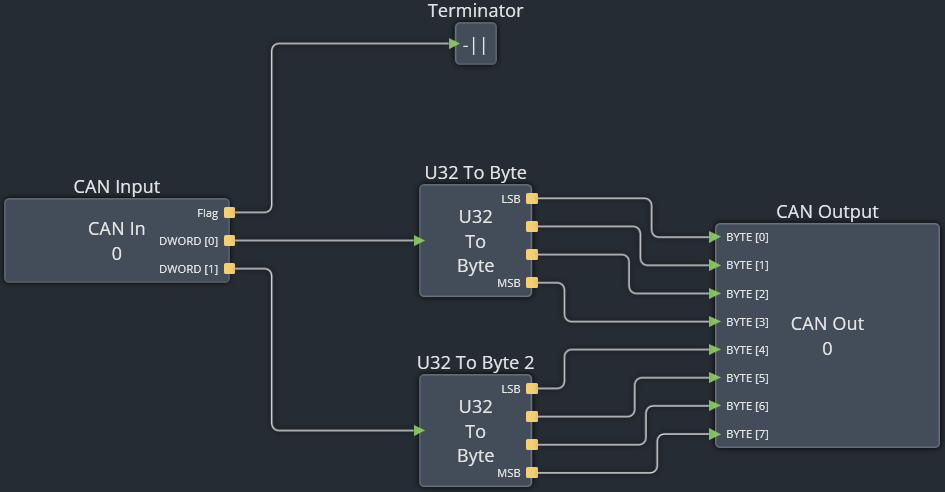
Figure 7 - CAN Input and Output diagram
Before simulate, it is necessary to configurate the CAN Output Properties similar what it was made in Figure 4.

Figure 8 - CAN Output Properties
A Terminal COM block used in the real world workspace allows to see the result of this diagram.

Figure 9 - Terminal Messages
About MWF
MWF is a traditional Brazilian company that provides a wide range of electronic and mechatronic products for industry sectors such as automotive, agricultural machinery and aerospace.
Contact Us
Rua Doutor Siqueira, 139 / Sala 804 Campos dos Goytacazes - RJ, Brasil
contact@mwf-technologies.com
© 2018-2026 MWF. All rights reserved.